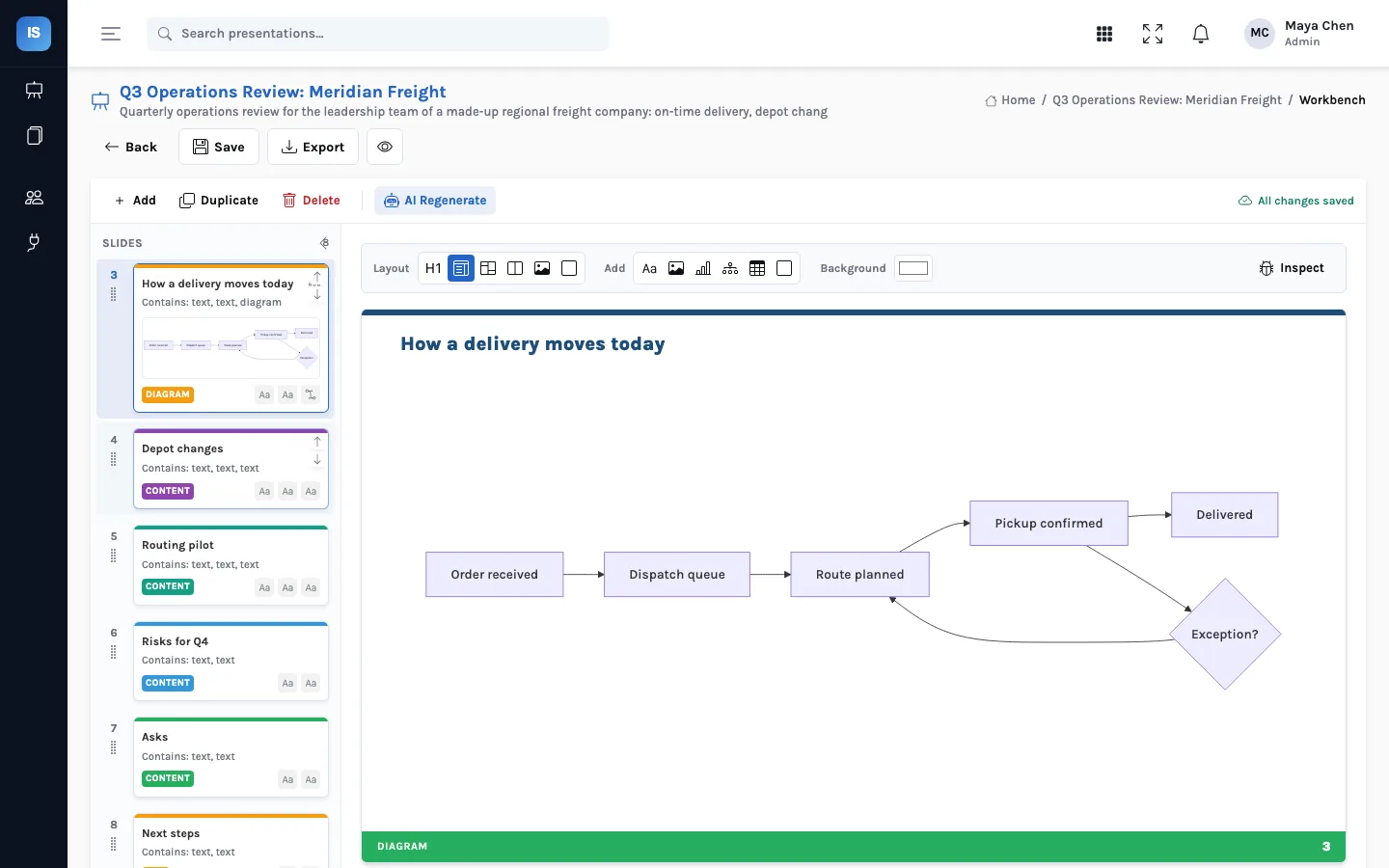
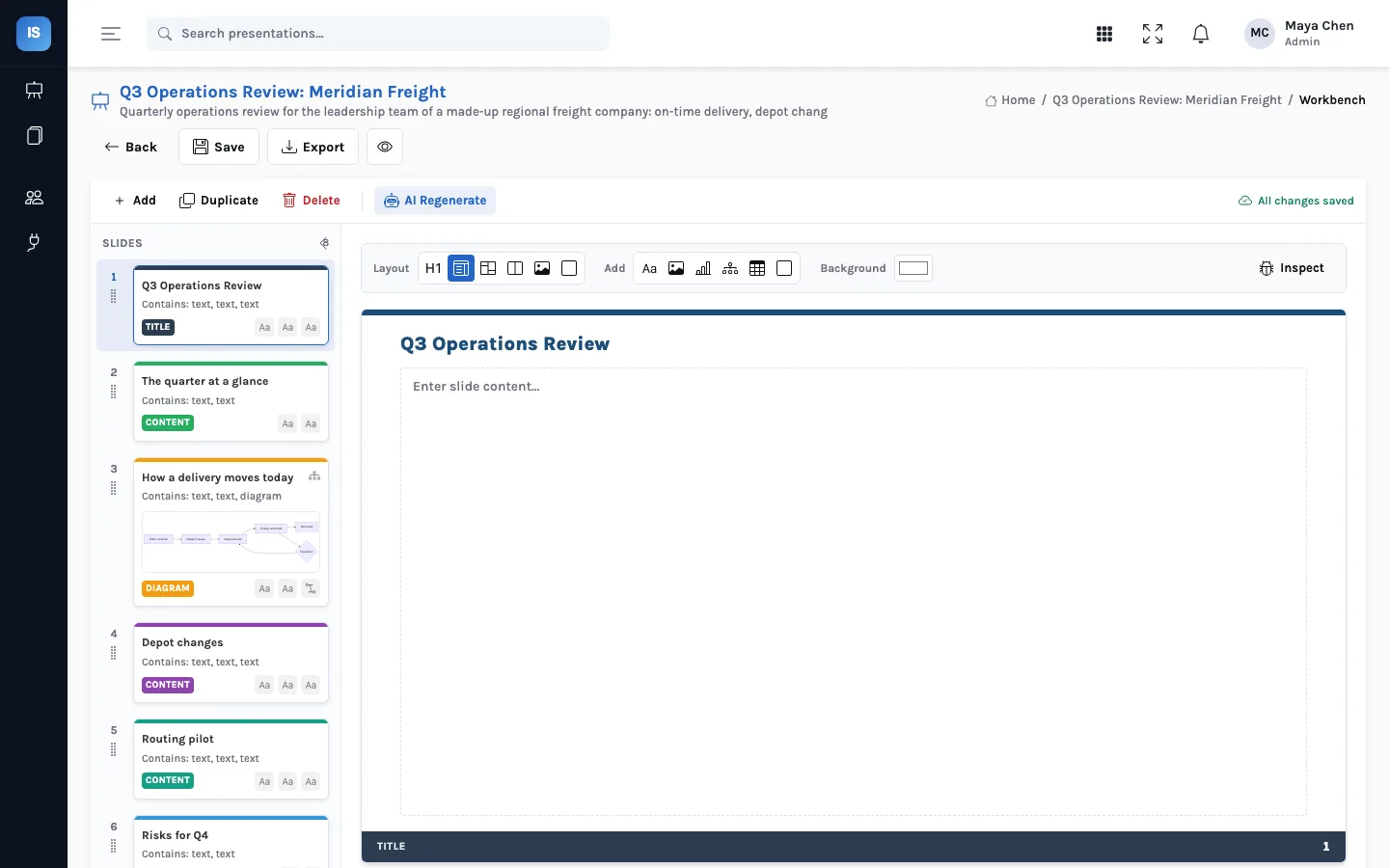
A deck that does not look like your organisation's is a deck someone has to restyle by hand. Templates in InsightSlides carry the colours, fonts and layouts a presentation should use, and every new deck starts by choosing one.
The built-in templates
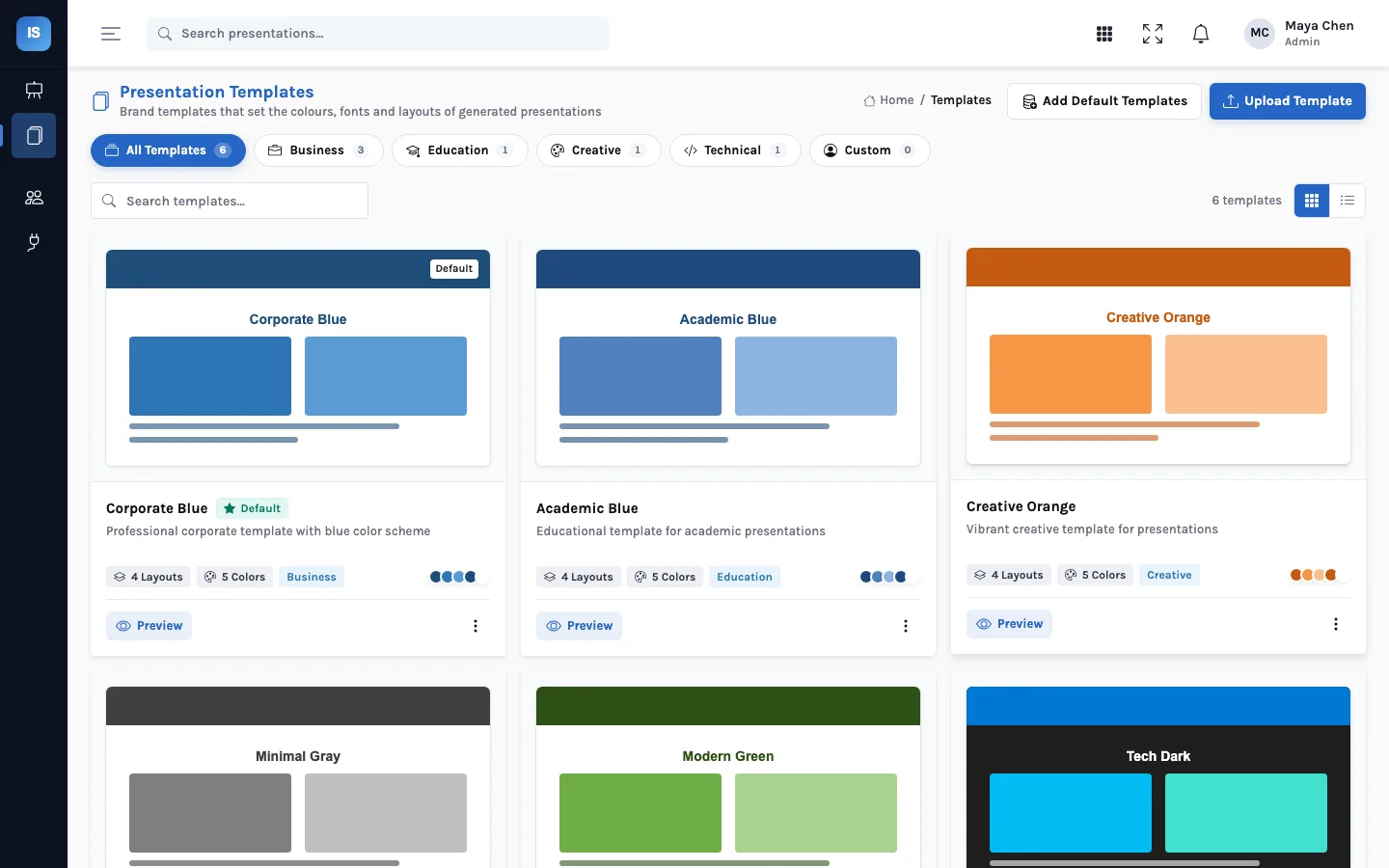
The Templates page lists every template with a preview, its category, the number of layouts and colours, and its palette. Six designs come with the product:
| Template | Category | Look |
|---|---|---|
| Corporate Blue | Business | Navy and blue; the default |
| Modern Green | Business | Clean, with green accents |
| Creative Orange | Creative | Warm orange for creative work |
| Academic Blue | Education | For academic and teaching decks |
| Tech Dark | Technical | Dark background with bright accents |
| Minimal Gray | Business | Subtle gray tones |
Each has layouts for a title slide, title and content, two columns and a blank or image-focused slide. Filter the list by category (business, education, creative, technical, custom) or search by name, and preview a template before using it.
Uploading your own PowerPoint template
Upload Template takes a .pptx file. InsightSlides opens it and reads what it can use:
- Slide layouts: the layouts defined in the file and their placeholders.
- Fonts: the title and body fonts, taken from the text on the file's first slide; if that slide has no text, Calibri is assumed.
- Colour scheme: a template records background, primary, secondary, accent and text colours. Set them through the API's template update, which accepts the theme configuration; the Templates page edits name, description and category.
You give the upload a name, a description and a category; the result appears in the library alongside the built-in templates and can be picked for any new deck.
A default for the team
One template is marked as the default, shown with a badge on its card and pre-selected in the create form. Set your organisation's own template as default so nobody has to remember to pick it.
Where the template shows
The template's colours and fonts style the deck in the workbench. The PowerPoint and PDF exports are clean 16:9 files with a coloured footer bar and page numbers. If the exported file must sit on your corporate master, apply that master in PowerPoint after export: the Design tab lets you apply a different theme or template to an open file.
| What the upload is used for | How |
|---|---|
| Choosing a template in the create form | Yes |
| Styling slides in the workbench | Yes, with the template's recorded colours: each built-in template's own palette, or the default palette for an upload |
| Guiding what the generator writes | No: generation works from the brief, tone and slide count |
How to decide: built-in or uploaded
| Situation | Choose |
|---|---|
| Internal update, training, workshop | A built-in template; Corporate Blue or Minimal Gray for most business decks |
| You want the workbench to show your brand's colours | A built-in template close to your palette, or an upload whose colours are set through the API |
| The file must end up on your corporate master | Any template in InsightSlides, then apply the master in PowerPoint after export |
| Different audiences need different looks | One template per purpose, clearly named |
Bringing in the house template
The operations lead uploads the firm's .pptx template as Fenwick client deck, category business, and sets it as the default. The upload reads the file's layouts and its title and body fonts, and she asks the team that runs InsightSlides to set the firm's navy and teal through the template update. Consultants now start every deck from the right template, draft and edit in the workbench, and apply the firm's master in PowerPoint as the last step before a deck goes to a client.
Managing the library
Templates can be edited (name, description, category) and deleted from their card menu, and any template can be set as the default. A deck records the template chosen when it was created, so changing the default affects new decks, not existing ones. If your organisation updates its brand, upload the new template, set it as default, and retire the old one once current decks have moved over.
Built-in templates are a reasonable starting point for internal decks. For anything a customer or a board will see, an uploaded template that matches your own design guidelines is usually worth the few minutes it takes to add.
Tips
- Keep the source template simple. Clear layouts with standard title and body placeholders are easier to read than hand-positioned text boxes.
- One template per purpose. A board template and a training template can coexist; name them so people pick the right one.
- Brand colours belong in the template, not the brief. Describe the content in the brief and let the template carry the look.
Frequently asked questions
Which files can be uploaded?
PowerPoint .pptx files. Convert older .ppt files to .pptx first, because the template is read with a
.pptx parser. If no name is given, the file name is used.
Can we get the built-in templates back if they are deleted?
Yes. The API has an action that seeds the default templates again.
Who sees an uploaded template?
Everyone using the same installation shares one template library and one default, so name uploads clearly and agree who sets the default.
Does changing a template restyle old decks?
A deck keeps the template it was created with. Changing the default only affects new decks.