No generator writes your presentation exactly the way you would. InsightSlides treats the generated deck as a first draft and gives you a workbench to finish it. Open any deck from the Slides page with Open in workbench.
The slide navigator
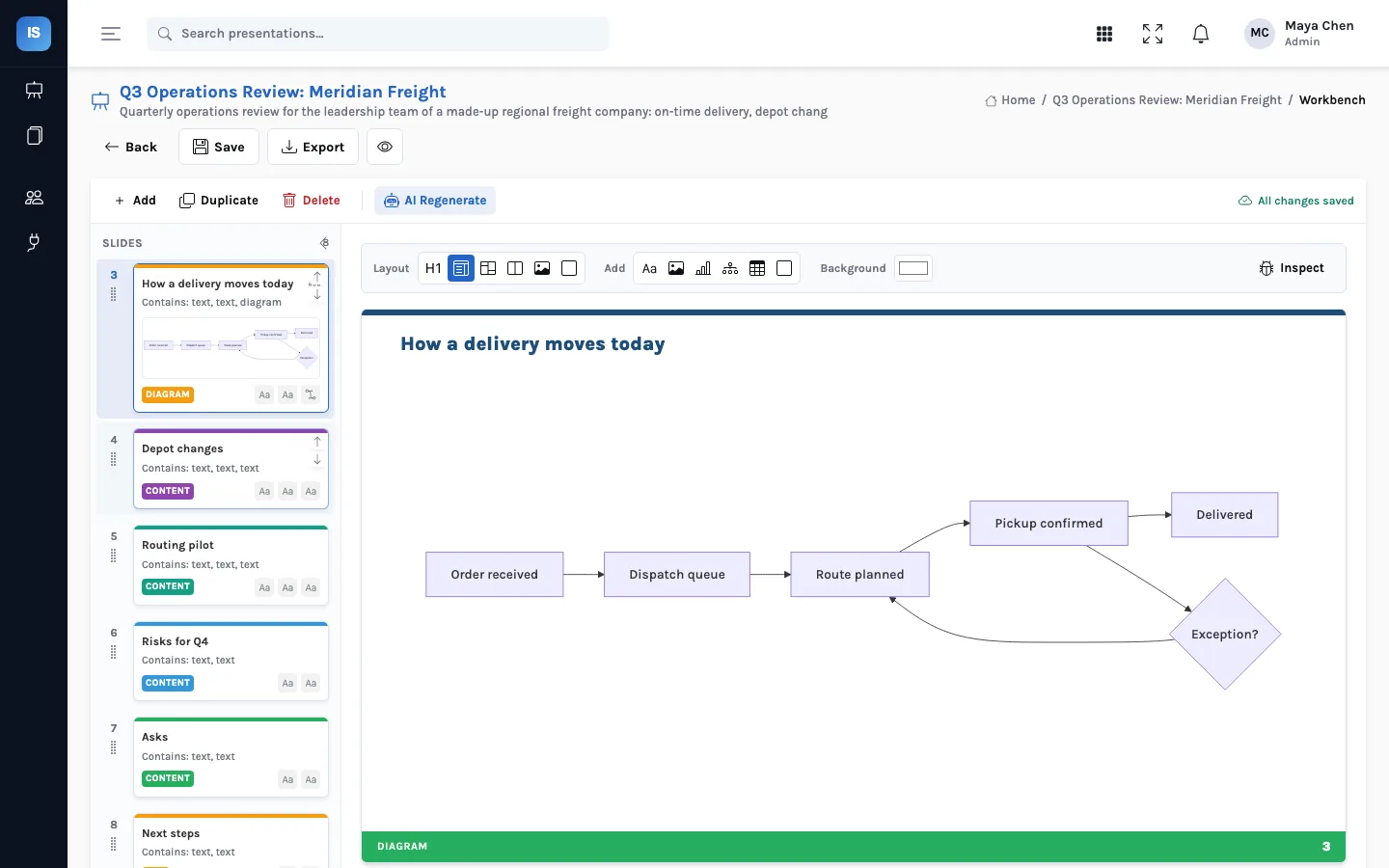
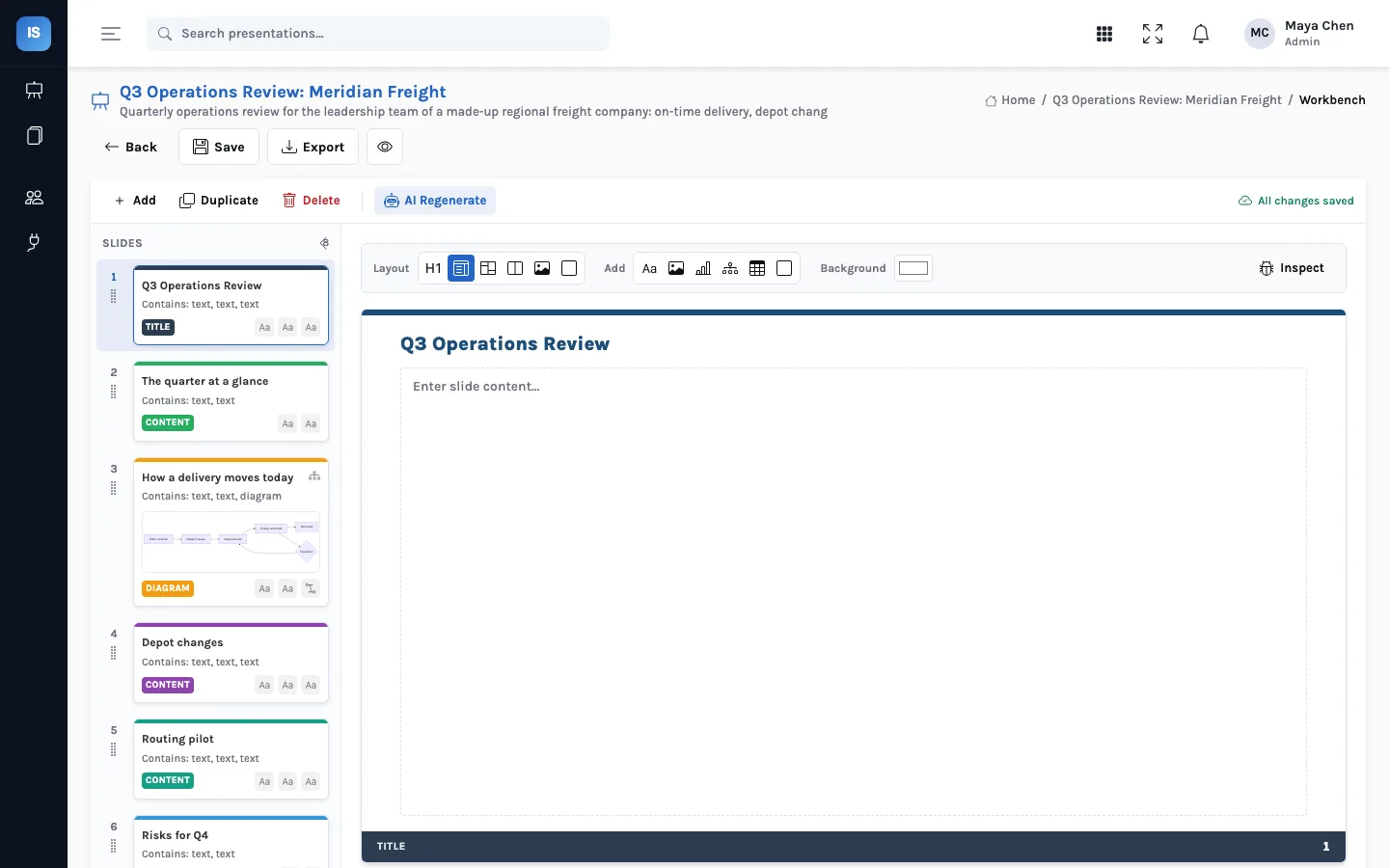
The left column lists every slide with its title, a line describing what it contains (for example "Contains: text, text, diagram") and a badge for its type: title, content or diagram. Click a slide to edit it. Drag slides to reorder them, or use the move up and down buttons if you prefer not to drag. The toolbar adds a new slide, duplicates the current one (with fresh copies of its elements) or deletes it.
Layouts and elements
Each slide has a layout: title, content, two-column, comparison, image-focus or blank. Above the slide, the toolbar switches layout, adds elements and sets the background colour. You can add six kinds of element: text, image, chart, diagram, table and shape. Below the slide, the Elements list shows each element on the current slide; edit its content or remove it. Inspect shows the slide's underlying data when you want to see exactly what will be exported.
Click the title to edit it in place. When a slide has a diagram, the diagram fills the slide body, rendered from its Mermaid code, so a change to the code shows on the slide straight away.
Speaker notes
Every generated slide comes with speaker notes; the field next to the elements list edits them. Keep the notes in InsightSlides as the presenter's script: the slideshow shows them beside each slide.
Diagrams
Add a diagram from the toolbar and you can describe it in words: choose a type (flowchart, sequence, pie, timeline and so on), write what it should show, and InsightSlides writes the Mermaid code and previews it before you add it to the slide. If the description does not produce a diagram, you can start from a template of that type and edit the code instead. See diagrams in your slides.
An editing order that works
- Structure. Read the titles in the navigator. Reorder, add and delete slides until the story is right.
- Layouts. Switch slides that compare two things to two-column or comparison; keep one idea per slide.
- Words. Replace general phrasing with your own examples and figures. Shorter bullets read better from the back of a room.
- Diagrams. Check each label and step against how your team actually works.
- Notes. Rewrite the speaker notes in your own voice; they are what you will say.
Elements worth a second look
- Charts and tables start with sample content. A new chart is a bar chart with three made-up values (A, B, C), and a new table has two placeholder columns. Replace them with your own data before anyone sees the deck.
- Check images, charts and tables in the exported file. If a slide depends on one, open that slide in PowerPoint after export and finish it there.
- Text and diagrams export fully. A typical generated deck is text plus a few diagrams.
A thirty-minute pass on a generated deck
As an illustration, here is how a ten-slide generated draft might be finished in one sitting:
- Five minutes on the navigator: read every title, drag the ask earlier, delete a slide that repeats another, add one for a topic the generator missed.
- Ten minutes on words: replace every generic bullet with a specific one; cut each slide to the three bullets that matter.
- Five minutes on the diagram: fix labels in the Mermaid code so they match the words your team uses.
- Five minutes on notes: rewrite them as what you will actually say.
- Five minutes on checks: open Preview, step through with the arrow keys, then export and open the file.
Saving and shortcuts
| Action | How |
|---|---|
| Save | Save button or Ctrl+S; the toolbar shows when all changes are saved |
| Duplicate the slide | Duplicate button or Ctrl+D |
| Preview | the eye button or Ctrl+P |
| Move between slides | the arrow keys |
Export
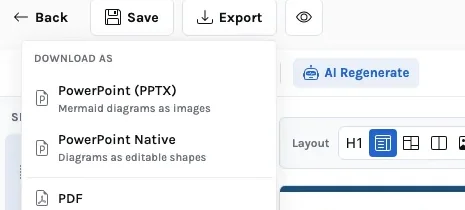
The Export menu offers PowerPoint with Mermaid diagrams as images, PowerPoint with diagrams as editable PowerPoint shapes, PDF, and Google Slides.
Frequently asked questions
Do I lose work if I close the tab?
The workbench keeps your edits in a draft and saves it every 30 seconds while there are unsaved changes, when you press Save or Ctrl+S, when you go back, and before an export. Closing the tab with unsaved changes asks you to confirm first.
Can I edit without a model configured?
Yes. Everything in the workbench except drawing a diagram from a description works without a model key.
Is there a read-only view?
Yes. From the Slides page a deck opens in a viewer: a gallery of every slide with its element types and whether it has notes, and a slideshow mode that starts at whichever slide you click, with full screen and speaker notes you can show or hide. Export is available there too.
What does Inspect show?
The slide's underlying data: its layout, background and each element with its type and content, which is what Save stores and the export reads. For a diagram it also shows a test rendering of the Mermaid code, which helps when a diagram will not draw. It is the quickest way to see why an element appears, or does not appear, in an exported file.